
Overview
Per-Form Email Rules let you override the plugin’s global email settings for individual Divi contact forms. Each rule targets a specific page on your site and controls the BCC address, confirmation email toggle, and custom email template for submissions from that page only.
Forms that don’t match any rule continue using the global settings configured under Email Notifications.
Where to Find It
Divi Form DB → Settings → Per-Form Email Rules
The section appears below the global Email Notifications settings and above the Blocked Word List.
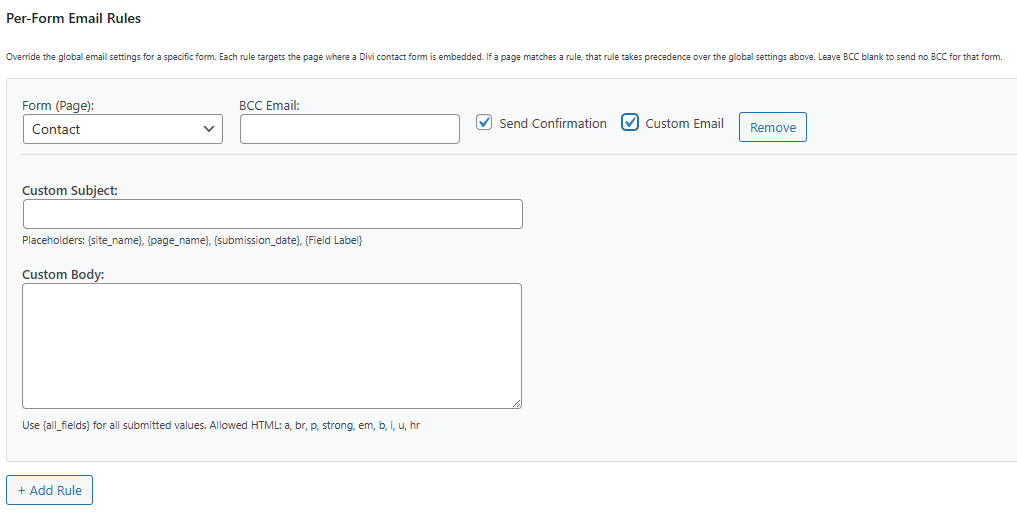
Adding a Rule
- Click + Add Rule. A new rule card appears.
- Fill in the fields (see Rule Fields below).
- Repeat for any additional forms.
- Click Save Settings at the bottom of the page.
You can add as many rules as you have forms. Each rule is independent.
Rule Fields
Form (Page)
A dropdown of all published pages on your site. Select the page where the Divi contact form you want to configure is embedded.
Note: Rules are matched by page ID, not page name. Renaming a page after creating a rule will not break it.
BCC Email
An email address to receive a copy of every submission from this form.
- If filled in, this address receives a BCC email for every submission from this form, instead of the global BCC address.
- If left blank, no BCC email is sent for this form — even if a global BCC address is configured. This is intentional: a blank BCC in a rule means “send no BCC for this form”.
Send Confirmation
Tick to send the submitter a confirmation email when they submit this form.
- This setting is independent of the global Send confirmation email to submitter toggle.
- A form rule can have confirmation enabled while the global setting is off, or vice versa.
- Confirmation emails are only sent if the form contains an email field.
Custom Email
Tick to write a custom subject and body for the confirmation email sent from this form. Unticking this (while Send Confirmation is still on) sends the default confirmation template instead.
Custom Subject
The subject line for the confirmation email. Supports placeholders — see Placeholders.
Only visible when Custom Email is ticked.
Custom Body
The body of the confirmation email. Supports placeholders and a limited set of HTML tags.
Only visible when Custom Email is ticked.
Allowed HTML tags: <a>, <br>, <p>, <strong>, <em>, <b>, <i>, <u>, <hr>
Placeholders
Use these in the Custom Subject and Custom Body fields to insert dynamic values from the submission.
| Placeholder | Inserts |
|---|---|
{site_name} | Your WordPress site name |
{page_name} | The name of the page the form was submitted from |
{submission_date} | The date and time of submission |
{all_fields} | All submitted field labels and values |
{Field Label} | The value of a specific field — replace Field Label with the exact label used in your Divi form, e.g. {Name}, {Email Address}, {Message} |
Placeholder matching is case-sensitive and must match the field label exactly as it appears in your Divi form builder.
Removing a Rule
Click the Remove button on the rule card you want to delete, then click Save Settings. The rule is deleted and the form reverts to using the global settings.
How Rules Interact with Global Settings
| Scenario | Result |
|---|---|
| No rule for a form | Global settings apply (BCC, confirmation toggle, custom template) |
| Rule exists, BCC filled in | Rule’s BCC address used; global BCC ignored for this form |
| Rule exists, BCC left blank | No BCC sent for this form |
| Rule has Send Confirmation on, global is off | Confirmation is sent for this form |
| Rule has Send Confirmation off, global is on | No confirmation sent for this form |
| Rule has Custom Email on with subject + body | Rule’s custom template used |
| Rule has Custom Email off, Send Confirmation on | Default “thank you” confirmation template used |
Troubleshooting
The page I want isn’t in the dropdown.
Only published pages are listed. Make sure the page has been published in WordPress (not draft or private).
My rule doesn’t seem to be applying.
Confirm the correct page is selected in the rule’s Form (Page) dropdown — the rule matches on page ID, so if the same form is embedded on multiple pages, each page needs its own rule.
The confirmation email isn’t being sent.
Check that the form on that page contains an email field. Confirmation emails require a valid email address to send to, so the form must have at least one field that captures the submitter’s email address.
No BCC email is being received for a form that has a rule.
Once a rule exists for a page, the rule’s BCC field takes full control — the global BCC address is ignored entirely for that form. If the rule’s BCC field is blank, no BCC will be sent. To receive a BCC, enter the desired address in the rule’s BCC field. If you want to use the same address as the global setting, copy it into the rule’s BCC field manually.
Custom placeholders aren’t being replaced.
Placeholder names must exactly match the field label in your Divi form, including capitalisation and spacing. Check the submission in Divi Form DB to see the exact label names recorded.