
If you’re running two or more Divi contact forms on the same WordPress site, you’ve probably hit this wall: the plugin has one global email template, and it goes out to every form submission the same way. A general enquiry form and a job application form need very different confirmation emails — different tone, different content, different recipient addresses. Until now, the only workaround was to pick one template that kind of works for both and live with the compromise.
Per-Form Email Rules change that. You can now define separate BCC recipients, separate confirmation messages, and separate custom email templates for each individual form — and forms without a rule continue using the global settings without any disruption.
The problem with a single global template
The global confirmation email is designed to work everywhere, which means it’s optimised for nowhere. A visitor who fills in a quick contact form doesn’t need the same follow-up as someone who submits a detailed project brief or a job application. Sending the same “Thank you for your submission” email to both isn’t just impersonal — it can actively confuse the recipient.
The same problem applies to BCC addresses. If your sales team monitors a shared inbox and your HR team monitors a different one, there’s no clean way to route form submissions to the right people when there’s only one BCC field.
Per-Form Email Rules solve both problems at the page level. Each rule targets a specific page on your site, and any form submission originating from that page uses the rule’s settings instead of the globals.
How it works
When a Divi contact form is submitted, the plugin records which page the submission came from. Per-Form Email Rules use that page ID to look up whether a specific rule applies. If one is found, its settings take over for that submission only. If no rule matches, the global settings apply as normal — so adding rules for some forms never affects the forms you haven’t configured.
This means you can:
- Route different forms to different inboxes. Set a specific BCC address per form, so job application submissions go to HR, contact enquiries go to your main support inbox, and event registrations go to your events team — automatically, without any manual sorting.
- Turn off BCC for specific forms. Leave the BCC field blank in a rule and no BCC email will be sent for that form at all. Useful for internal forms or low-priority submissions where you don’t need a copy in your inbox every time.
- Write a custom confirmation email for each form. Toggle on the Custom Email option per rule and write a subject and body specific to that form — with all the same field placeholders available (
{Name},{Email},{all_fields},{site_name}, etc.). - Enable confirmation emails for one form but not another. Each rule independently controls whether a confirmation is sent, regardless of the global setting.
Setting up a rule
Rules are configured in Divi Form DB → Settings, in the new Per-Form Email Rules section below the global email settings.
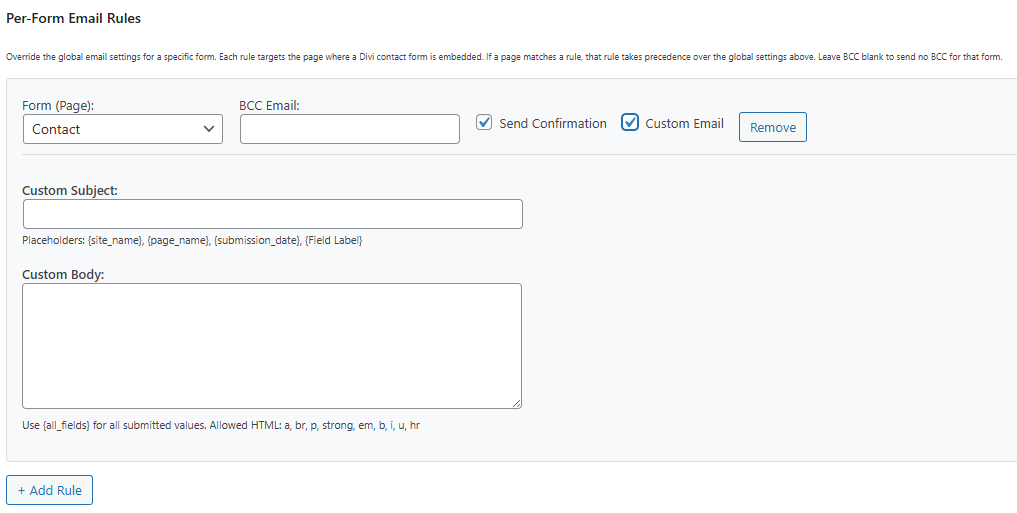
Click + Add Rule and a card appears with five fields:
Form (Page) — a dropdown of all published pages on your site. Select the page where the form you want to configure is embedded.
BCC Email — an email address to receive a copy of every submission from this form. Leave this blank to send no BCC for this form.
Send Confirmation — tick this to send the submitter a confirmation email when they use this form.
Custom Email — tick this to expand the custom subject and body fields. If left unticked and Send Confirmation is on, the submitter receives the default confirmation template.
Custom Subject / Custom Body — only visible when Custom Email is ticked. Write the subject line and email body for this form specifically. Field values from the submission can be inserted with {Field Label} placeholders — for example, {Name} to include whatever the submitter typed into a field labelled “Name”.
Add as many rules as you have forms. Rules are independent of each other. When you’re done, click Save Settings at the bottom of the page.
A practical example
Say you have two forms: a Contact Us form on your Contact page, and a Job Application form on your Careers page.
- The Contact form should BCC your main support inbox and send a short, friendly confirmation email.
- The Job Application form should BCC your HR inbox, send a more formal acknowledgement telling the applicant when they can expect a response, and mention the role they applied for by pulling in the
{Position}field.
Without Per-Form Email Rules you’d have to choose one approach for both, or maintain two entirely separate plugins. With rules, you configure each form exactly as it needs to behave and the plugin handles the routing automatically.
Forms without a rule
Any form that doesn’t match a configured rule continues to behave exactly as it did before — using the global BCC address, the global confirmation toggle, and the global custom template if one is set. Adding rules for some forms doesn’t change the behaviour of others. You can migrate forms to rules gradually, one at a time, without disrupting anything that’s already working.
Per-Form Email Rules are available now in the premium version of Divi Contact Form DB. Update to the latest version to see the new section in your plugin settings.
Related KB article: Per-Form Email Rules